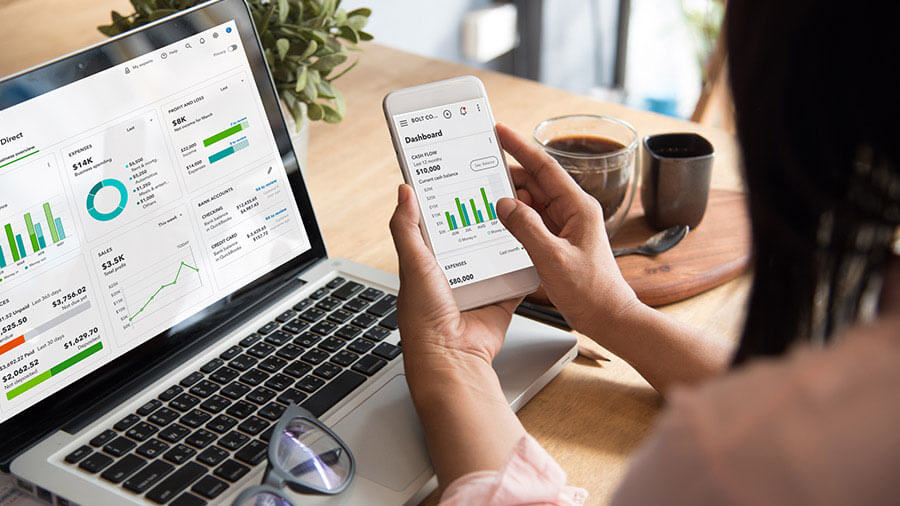
Did you know QuickBooks holds over 80% of the automated billing system market in the U.S. and Canada? With more than 2.5 million users globally, it’s no surprise that small businesses rely on it for smooth, accurate invoicing.
But why does this matter? Because late payments, manual errors, and time-consuming admin tasks can hurt your cash flow. QuickBooks’ automated billing system solves this by creating smart, repeatable processes. As a result, you get paid faster and gain better financial control.
What Is the QuickBooks Billing System?
To begin with, QuickBooks billing is more than invoicing software. It’s a full billing automation system that streamlines everything from creating invoices to collecting payments.
Here’s what makes it powerful:
- Recurring invoice scheduling – Send bills automatically at regular intervals.
- Autopay – Let clients pay automatically for repeat services.
- Progress invoicing – Get paid in stages for long-term projects.
- Real-time tracking – See when invoices are opened or paid.
Because of these tools, QuickBooks helps you avoid billing mistakes and speed up payment collection. According to research, businesses using automated systems get paid nearly twice as fast.
Additionally, the system integrates well with project management and time tracking tools. This makes it easier to connect hours worked or tasks completed to client invoices.
Key Features to Look for in Billing Software
When choosing any billing software, it’s essential to consider:
- Customization – You should be able to tailor invoice templates with your logo, colors, and terms.
- Multiple payment options – Offering ACH, credit cards, and Apple Pay improves convenience for customers.
- Recurring billing – This is especially important for subscription-based services.
- Ease of use – A simple dashboard saves time and reduces staff frustration.
- Integration with other tools – The software should work with your accounting or CRM systems.
- Security – Strong encryption protects your client’s payment data.
QuickBooks ticks all of these boxes, which is why it continues to dominate the small business market.
How to Set Up QuickBooks Billing in 5 Steps
Now let’s look at how to set it up properly:
- Customize Your Invoices
First, go to Settings > Sales > Sales Form Content. Add your logo, edit invoice fields, and create a consistent brand look. - Add Products and Services
Next, head to Sales > Products & Services > New. Add service details, pricing, and income tracking info for easy reuse. - Enable Online Payments
Then, go to Settings > Payments tab > Activate Payments. This lets clients pay through QuickBooks using credit cards or bank transfers. - Set Up Recurring Invoices
After that, visit Transactions > Recurring Transactions > New. Choose “Scheduled” and set how often invoices should go out. - Turn On Autopay
Finally, enable Autopay for eligible invoices. Clients will receive a link to enroll in automatic payments, saving time for both of you.
Additionally, turn on billable expenses tracking under Settings > Expenses. That way, any expenses linked to a client can be added to future invoices automatically.
Why It Matters
Altogether, automating your billing with QuickBooks saves time, reduces errors, and improves cash flow. You spend less time chasing payments and more time growing your business.
Although setup takes some planning, the long-term benefits are huge. With automated workflows in place, you’re not just invoicing—you’re running a more efficient business.
Frequently Asked Questions
Q1. How do I set up automatic billing in QuickBooks? To set up automatic billing, create an invoice, select “Recurring” from the dropdown menu, choose the billing frequency, and enable “Automatic Payments” to charge customers with their card on file automatically.
Q2. What steps are involved in automating invoices in QuickBooks Online? To automate invoices, go to Settings, select “Recurring Transactions,” choose “Invoice” as the transaction type, set it to “Scheduled,” and enable “Automatically send emails.” This will create a system for sending invoices automatically at predetermined intervals.
Q3. Can QuickBooks handle recurring billing for subscription-based businesses? Yes, QuickBooks offers robust recurring billing functionality. You can set up customized payment schedules for each client, automate invoice generation, and even send reminders when payment information needs updating.
Q4. How does QuickBooks automated billing system improve cash flow? The automated billing system in QuickBooks accelerates payment cycles by sending invoices promptly, offering multiple payment options, and enabling features like Autopay. This streamlined process helps businesses get paid up to twice as fast, significantly improving cash flow management.Q5. What are the key features to look for in QuickBooks billing system? Important features include customizable invoice templates, support for multiple payment methods, recurring billing options, easy-to-use interface, integration capabilities with other business tools, and robust security measures for handling sensitive financial information.